Marie's Adventure Controls & UI Reference
Keyboard defaults, menus, combat inputs, and fix keys for stuck scenes.
Marie’s Adventure ships as a Windows H-RPG built on a customized RPG Maker-style front end. Controls are intentionally familiar: arrow-key movement, confirm/cancel face buttons, and a modular menu for stats, optional 18+ content toggles, and pregnancy tracking. This page documents every input layer so you are not fighting the UI while managing belly progress, brothel shifts, and turn-based demon fights.
Read this before your first session in the starting village, then keep it open when Mulshore dialogue loops or a brothel scene freezes — several community fixes rely on scene reload keys documented below.
Keyboard movement & field controls
On foot, Marie uses classic grid movement:
| Input | Action |
|---|---|
| Arrow keys or WASD | Move on the map |
| Enter, Space, or Z | Confirm / interact with NPCs and doors |
| Esc or X | Cancel / open main menu (context-dependent) |
| NUM 0 (keypad zero) | Cancel — added in v1.0g |
| Shift (when enabled) | Dash / faster overworld steps |
Hold direction keys to chain tiles; pregnancy continues advancing while you walk or run on the field. Standing still or opening passive menus does not substitute for movement — a core rule explained in the pregnancy system guide.
Mouse clicks work on title screens and some UI buttons, but story scenes and battles expect keyboard confirmation. Steam Deck and handheld users should map confirm/cancel before brothel sequences that demand rapid inputs.
Main menu & status screens
Press Esc (or the in-game menu button) to open the pause hub. Important tabs for Marie’s Adventure include:
- Items — consumables and quest goods.
- Skills / party — ally setup tied to party progression.
- Status — pregnancy percent, sluttiness, ero counters, breast milk capacity.
- Options / content settings — toggle birth depictions, lactation, x-ray views, and other mature content filters (content settings guide).
Breast milk capacity lives in the status layer. Open it during pregnancy to feed numbers into the pregnancy tracker litter helper. If birth count desyncs after your first story delivery, note the value here and cross-check known issues.
Combat controls
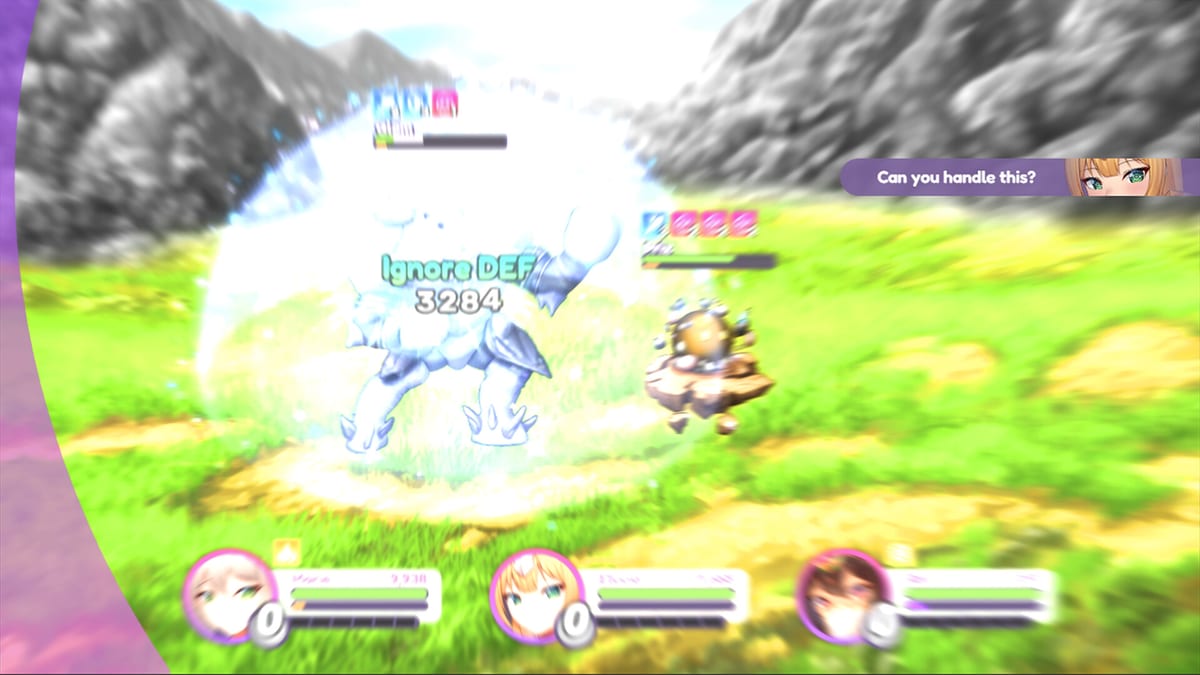
Battles are turn-based with command menus:
- Select Attack, Skills, Items, or Defend with confirm.
- Pick targets on the next submenu.
- Use cancel to step back one level.
Speed toggles (if present in options) reduce grind between demon waves on overworld routes. Combat does not pause pregnancy — walk between fights to push the meter toward Sylva Inn delivery (Sylva City).
Interaction & story prompts
Dialogue advances with confirm. Some scenes branch on yes/no boxes; others auto-play CG until you mash confirm to continue. When choices affect sluttiness or brothel availability, the game usually logs shifts in status immediately after the scene.
If dialogue loops endlessly — famously reported on first Mulshore entry — try:
- F5 or the engine’s scene reload shortcut if available.
- Load the latest manual save from the title screen.
- Apply the newest hotfix (
wwwfolder overwrite) from release notes.
The developer also referenced emergency hotfixes after Patreon patches; install order matters when black screens persist in nun-related scenes.
Content toggles & comfort options
Marie’s Adventure advertises optional mature systems on Steam: childbirth depictions, lactation, nudity, and x-ray overlays can be disabled independently. Access them early in the starting village before story triggers fire. Changing toggles mid-scene sometimes requires reloading the save — plan adjustments at inns or the Sylva hub, not during active CG.
Save & load shortcuts
Use the title menu or in-world save points (often inns). Community multiples hunting saves right before Sylva Inn clerk dialogue; respect that habit by binding confirm carefully so you do not accidentally skip the save prompt.
Quick-load behavior depends on build; assume manual slots only unless you confirm otherwise in patch notes. Cloud sync is not native — back up %LOCALAPPDATA% folders if you reinstall after Windows Defender quarantine (troubleshooting).
Steam Input, Deck, and handhelds
Keyboard remains the supported PC baseline. On Steam Deck or handheld PCs:
- Open Steam Input for Marie’s Adventure.
- Map Confirm to a face button (A/B depending on layout) and Cancel to another.
- Keep a keyboard fallback for F5 scene reload during Mulshore or brothel loops.
- Expect CG and brothel menus to feel denser than overworld movement — pause between confirms.
This is community mapping guidance, not a first-party Deck verification badge. Specs still require Windows per System Requirements.
Platform notes
- Windows 10 64-bit minimum per Steam listing.
- English UI only — wiki locales are fan translations; game text stays English.
- JoiPlay / mobile wrappers are unsupported; brothel scenes may require F5 resets on emulated setups.
Related pages
- Getting Started — first-hour checklist.
- Map Hub — where movement actually matters for birth routing.
- Known Issues — white/black screens and loop fixes.
- Review — how the customized UI feels in the full release.
Comfort with confirm/cancel layering separates smooth pregnancy loops from accidental soft locks. Learn the menu once, and the rest of Marie’s Adventure becomes about strategy — not mis-clicks.
Window focus (v1.0h)
Patch Note v1.0h makes the game continue running normally when the window is out of focus. Alt-tabbing to a browser, Discord, or this wiki should no longer freeze the RPG Maker window the way older 1.0 letters did. Stay on v1.0h if a background pause still looks like a hang.
Also new in nearby letters: NUM 0 as Cancel (v1.0g), and Config switches for automatic childbirth (v1.0e) and automatic milking (v1.0h) — see Content Settings.
Frequently Asked Questions
Quick answers to the most common questions.
How do I open the pregnancy status menu?
Open the main menu with Esc, then navigate to Status. Pregnancy percent and breast milk capacity appear there during active pregnancies.
What key fixes stuck brothel or Mulshore scenes?
Community reports often use F5 or a scene reload, then restore from manual save if the loop continues. Apply hotfixes if the issue persists.
Does the game support controller-only play?
Keyboard is the primary input on PC. Map confirm and cancel to face buttons if you use Steam Input or a handheld.
Does alt-tab pause Marie's Adventure?
On v1.0h or newer the game continues running while unfocused. Update if an older build still freezes when the window loses focus.